NetMirror for iOS — Download on iPhone & iPad (2026 Guide)
Every guide on the internet tells you to “download the NetMirror APK” — and if you are holding an iPhone, that is where you get stuck, because an APK file simply does not run on iOS, and there is no NetMirror app waiting for you in the App Store either. You are not stuck, though. iPhone and iPad users watch NetMirror a different way: through Safari, as a web app that sits on your home screen like a real app, or through a small webview app — no APK, no jailbreak, nothing risky to install. This page shows both ways, step by step.
✓ Works in Safari • iPhone & iPad • No Jailbreak
You cannot install NetMirror APK on an iPhone — APK files are made for Android only. On iOS, open the NetMirror website (NetMirror.gg) in Safari, tap Share, then “Add to Home Screen”, and NetMirror sits on your iPhone like an app. That is the safest and most recommended way. A second way, the DODO Webview app, is also explained below.
Download Details of NetMirror for iOS
| Detail | Information |
|---|---|
| App Name | NetMirror |
| Works On | iPhone and iPad |
| System | iOS with Safari (keep iOS updated) |
| Way to Use | Web App in Safari, or DODO Webview app |
| On App Store | No — not available there |
| Jailbreak Needed | No |
| Price | Free |
| File to Install | None — no APK or IPA needed |
Is NetMirror Available on iPhone?
Yes — but not the way Android users get it.
There is no NetMirror app in the Apple App Store. Apps like this do not stay there; an app under this name was listed once and was later removed. So if you are searching the App Store again and again, stop. You are not missing it. It is simply not there.
iPhone users use NetMirror through the web instead. The platform opens in Safari, and with two taps it saves to your home screen and opens full-screen, like a normal app. Same films, same shows, same library — just a different door in. And because everything runs through the browser, there is also no App Store account, no Apple ID password and no install file involved at all.
Can You Download NetMirror APK on iPhone?
No. And it helps to know why, so no site can fool you later.
An APK is a package made only for Android. The system inside an iPhone is built differently, and it cannot open or run an APK file — not with a trick, not with a converter app. If a page promises you a “NetMirror APK for iPhone download”, that file cannot work on your phone. At best it is a dead file. At worst, the page is wasting your time to earn clicks.
What About IPA Files and Install Profiles?
You will also see sites offering a NetMirror IPA file, or a method that asks you to install a profile and then “trust” an unknown developer in your settings. Be careful there. Trusting a profile from a site you do not know hands real control of your phone to a stranger, and Apple itself warns against it. Some people take that road. We do not send you down it, because the two methods below do the same job without that risk — and they are the ways the platform itself points iOS users to.
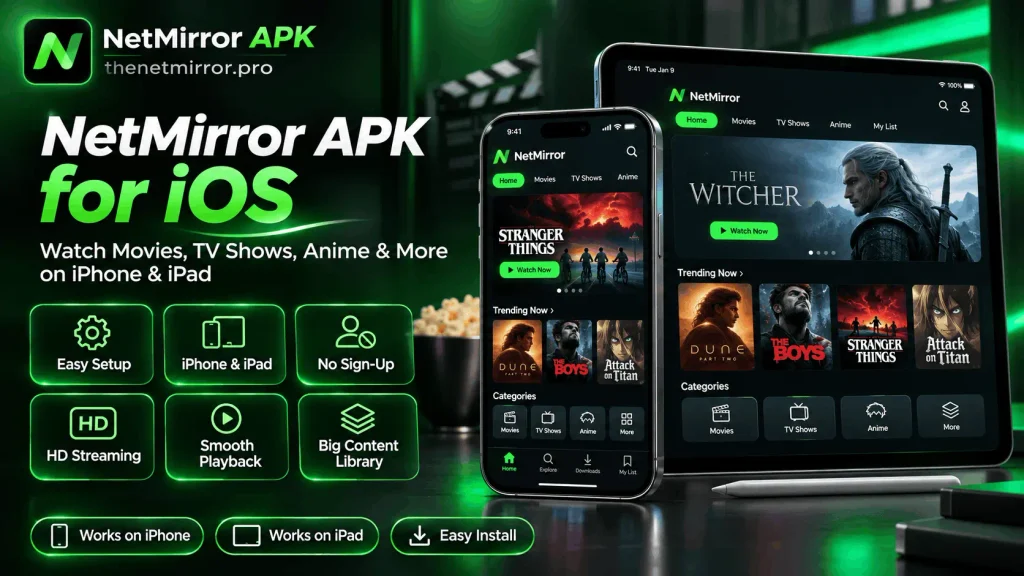
How to Use NetMirror on iPhone — 2 Working Methods
Here is the part you came for. Both methods are free, both take under two minutes, and neither one touches your phone’s system.
Method 1 — Save NetMirror as a Web App in Safari (Recommended)
This is the cleanest way. Nothing gets installed — Safari itself turns the site into an app-like icon.
Open Safari on your iPhone or iPad. Use Safari itself for this, not Chrome — the home screen option lives in Safari.
Go to the NetMirror website, NetMirror.gg, and let the page load fully.
Tap the Share button — the square with the arrow pointing up, at the bottom of the screen.
In the menu that opens, scroll down and tap Add to Home Screen.
Tap Add at the top-right corner.
Done. A NetMirror icon now sits on your home screen. Tap it, and the platform opens full-screen, with no browser bars — it feels like a normal app, because for daily use, it is one.
Method 2 — Use the DODO Webview App
The platform also points iOS users to a container app called DODO Webview. It is a small browser-in-an-app that holds the site for you.
Open the App Store on your iPhone or iPad.
Search for DODO Webview and download it.
Open the app and type the NetMirror site address into its address line.
In the app’s settings, turn ON all three toggles.
Tap Open Webview, and the platform loads inside the app, ready to stream.
Which one should you pick? Method 1, for most people — it needs no extra app at all. Keep Method 2 as your backup for a day when the web app misbehaves.
How to Add NetMirror to iPhone Home Screen
This is really Method 1’s result, and it is worth its own minute because the home screen icon is what makes this feel like a real app.
When you do the “Add to Home Screen” step, you can also rename the icon before tapping Add — keep it short, just “NetMirror” reads best. After that, long-press the icon any time to move it, put it in your entertainment folder, or drag it to your first home screen next to your other streaming apps. One tap from the home screen, and you are watching. No Safari hunting, no typing the address again.
NetMirror for iPad
Everything above works on iPad in exactly the same way — Safari is the same Safari, and the Share menu has the same “Add to Home Screen” option. On most iPads the Share button sits at the top of the screen instead of the bottom. That is the only real difference.
What the iPad gives you back is screen. Films and series look far better on it than on a phone, and it is big enough for two people to watch together on a train or in bed. If your house has one iPad that everyone shares, the home screen method is perfect for it — one icon, and whoever picks it up can start watching.
NetMirror iOS Features
All-in-One OTT Platform
Movies, TV shows, web series and anime from many big platforms, in one place. One search instead of five apps.
Free & No Subscription
No plan, no monthly bill, no trial running out. You open it and watch.
Ad-Free Streaming
Once your film or episode starts, it plays through. Your screen stays on the story, not on closing boxes.
HD Video Quality
Titles play in HD, and the picture holds up well even on the bigger iPad screen. On a strong connection it looks as good as any paid app at home.
Multi-Language Support
Subtitles in many languages, and more than one audio option on popular titles — handy in homes where not everyone watches in English.
Offline Downloads
On iOS, be straight about this one: the web way is made for streaming. Save your titles in your list so they are one tap away, and stream them when you are online. Full offline saving is an Android-app feature, not a web one.
Smart Search & Recommendations
Type a name and it is found fast. The home rows keep showing new and trending titles, and more of what you actually watch over time.
User-Friendly Interface
The layout is simple and familiar — rows, categories, big posters. If you have used any streaming app before, you already know how this one works.
AirPlay Support
Watching on the phone but the TV is right there? Send the picture to your TV with AirPlay and keep the phone as your remote. The screen mirroring section below explains it.
No Jailbreak Required
Nothing in this guide touches your phone’s system. No jailbreak, no profile to trust, no warranty games. If you ever get bored of it, deleting the icon ends it.
Easy Home Screen Access
One tap on your own home screen and you are in — the same feeling as any app from the App Store, without the App Store.
Large Screen Experience
Between the iPad’s display and AirPlay to a TV, iPhone users are not stuck with the smallest screen in the house. The web app opens full-screen and fills it.
NetMirror iOS vs Android
Key Differences Between iOS and Android
| Point | On iOS | On Android |
|---|---|---|
| How you get it | Web app in Safari, or DODO Webview | Install the APK file (v3.0) |
| App Store / Play Store | Not on the App Store | Not on the Play Store either |
| Install file | None | APK, 54.4 MB |
| Jailbreak / Root | Not needed | Not needed |
| Offline downloads | Streaming is the main way | Built into the app |
| Updates | Nothing to update — web is always current | Install the new APK over the old one |
Which Option Is Suitable for You?
If your main phone is an iPhone, the web app is genuinely enough for daily watching — it is fast, it is free, and there is nothing to maintain. If downloading films for offline viewing matters a lot to you, or you already own an Android phone or tablet too, that device gives you the full app. Many people do both without thinking about it: Android at hand for downloads, iPhone web app for everything else.
Important Compatibility Note
The web app route works on iPhones and iPads running a current version of iOS with an up-to-date Safari. If your device is very old and Safari has not been updated in years, pages can load oddly — update iOS first, then add the home screen icon again.
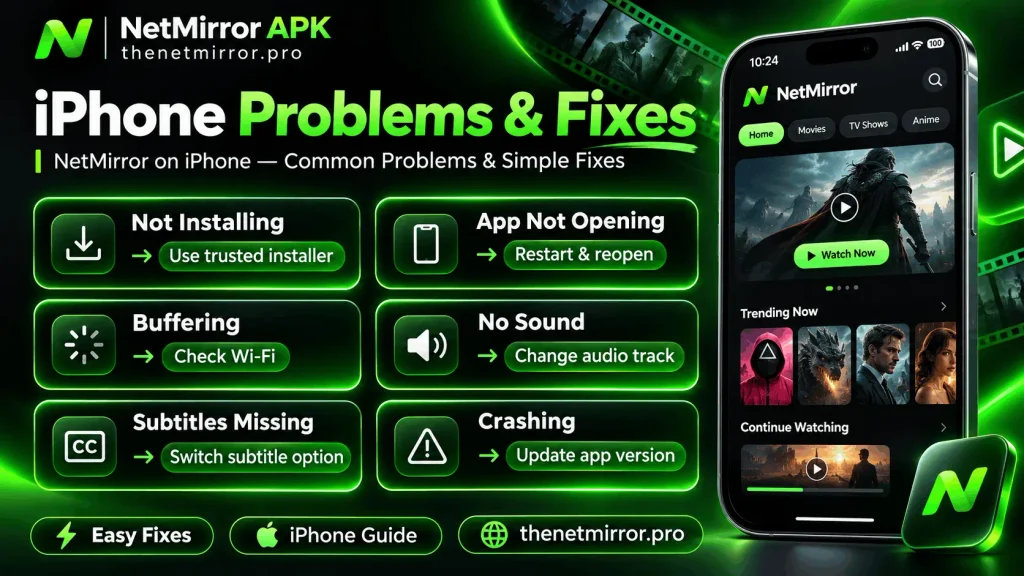
NetMirror Problems on iPhone & Fixes
NetMirror iOS Not Working
First, check the simple things: your internet, and that you opened it in Safari (Method 1 depends on Safari behaving). If the page will not load, clear Safari’s website data once — Settings > Safari > Clear History and Website Data — then open the site fresh and add the home screen icon again. Inside DODO Webview, check that all three toggles are still ON; an app update can turn settings back.
NetMirror Video Not Playing on iPhone
Give the page a full load before pressing play, and try another server for the same title if the player stays black. If videos play in Safari but not inside the webview app — or the other way around — use the one that works; that is why this page gives you two methods. Turning off any VPN or content blocker for a minute is also worth trying, as both can stop a player from loading.
NetMirror Buffering on iPhone
Drop the video quality one step, and move nearer your router or switch between Wi-Fi and mobile data to see which is steadier tonight. A home screen web app uses your connection just like the browser does, so most buffering on iPhone is a signal problem, not a NetMirror problem.
Is NetMirror Safe & Legal on iOS?
Is NetMirror Safe on iPhone?
Here, iPhone users actually get the safer deal. The web app method installs nothing on your phone — no file, no profile, no hidden permissions. You are visiting a website, the way you visit any website. The DODO Webview way adds one normal App Store app, which Apple itself has reviewed. The risky roads are the ones this page told you to skip: unknown IPA files and profiles that ask you to trust a stranger in your settings. Skip those, and the iOS way stays clean.
Is NetMirror Legal on iOS?
The legal side does not change with the device. It depends on your country and on what you watch, and the rules are not the same everywhere. This page cannot give legal advice — if it matters to you, check what applies where you live.
Can You Use NetMirror With Screen Mirroring?
Yes — and on iPhone it is built in, through AirPlay.
Start your film or show in NetMirror on the iPhone, open the player controls, and tap the AirPlay sign. Pick your Apple TV or AirPlay-ready smart TV from the list. Phone and TV must be on the same Wi-Fi. The picture moves to the big screen, the sound follows it, and your phone becomes the remote — pause, forward and volume without getting up.
No AirPlay on your TV? A plain screen-mirroring app, or a Firestick on the TV, does the same job. But if your TV is even a few years new, try AirPlay first — for most people it is already sitting there, unused.
NetMirror For iOS Pros and Cons
Pros
Cons
Frequently Asked Questions
Final Words
iPhone users do not have the APK. Once you accept that one fact, everything gets simple — you never needed it.
Two minutes in Safari, one icon on your home screen, and NetMirror opens like it was always an iPhone app. Free, no jailbreak, nothing strange installed on a phone that cost you real money. Set it up once, watch one film tonight, and the “but it is only for Android” problem is finished for good.