NetMirror for Firestick – How to Install With the Downloader App (2026)
A Firestick turns any ordinary TV into a smart TV — but the day you try to watch NetMirror on it, you hit the wall every Firestick owner hits: NetMirror is not in Amazon's app store, and a Firestick has no normal way to take an Android file. So people go searching, and land on pages shouting random “Downloader codes” at them, with no idea which code brings the real app and which brings junk. Here is the clean way through: one free official tool (the Downloader app), one setting hidden behind seven taps, and the same checked NetMirror file (v3.0, 54.4 MB) that runs on Android phones. Ten minutes, start to finish, and this page walks every tap — including the honest part about codes and the newest Firestick models, which most guides skip.
✓ v3.0 Latest • 54.4 MB • Android 7.0+ • Free • No Root
To install NetMirror on Firestick, do these four steps:
Turn on Developer Options — Settings > My Fire TV > About, then tap your Fire TV Stick's name 7 times.
Allow Downloader to install apps — in Developer Options / Install Unknown Apps, give the permission to Downloader only.
Install the Downloader app from the Amazon Appstore (the orange one, by AFTVnews).
Open Downloader, go to NetMirror's download page, download the APK and tap Install. Then delete the APK file to free the space back.
Full steps, the code warning, and every common fix are below.
Before You Start — What You Need
A Fire TV Stick, Fire TV Cube, or a Fire TV television (see the compatibility table — the newest models have a catch)
The Firestick connected to Wi-Fi — 10 Mbps or better for HD, 25 Mbps for smooth 4K
About 300 MB of free space on the stick (the app is 54.4 MB, but the stick needs working room; step 4 gives most of it back)
Ten quiet minutes with the remote
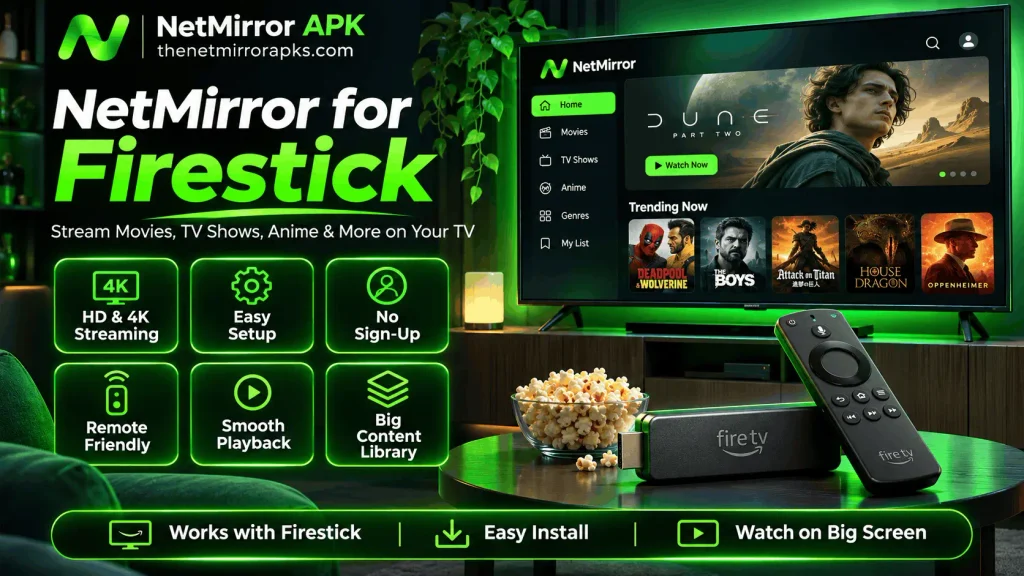
Which Fire TV Devices Can Install NetMirror?
| Device | Can it install? | Note |
|---|---|---|
| Fire TV Stick (older models), Stick Lite | Yes | The original sideloading way, works fully |
| Fire TV Stick 4K / 4K Max (Fire OS models) | Yes | The most common setup — this guide is written on these |
| Fire TV Cube | Yes | Same steps |
| Fire TV Edition televisions | Yes | Same steps, in the TV's own settings |
| The newest models running Vega OS | Restricted | See the note below — Amazon's new system limits sideloading |
The Vega OS note, honestly: Amazon's newest Firestick models have started arriving with a different system, Vega OS instead of Fire OS, and on those, sideloading apps from outside the store is restricted or blocked. If your brand-new stick simply refuses every step on this page, that is likely why — it is the device's new rules, not your mistake. The Fire OS models that most people own today still install exactly as this guide shows. (And mixed user reports online agree with this split: easy success on Fire OS sticks, blocks and fights on the newest Vega hardware.)
Part 1 — Turn On Sideloading (Developer Options)
Firestick hides this setting on purpose. Seven taps bring it out.
From the Firestick home screen, open Settings.
Go to My Fire TV, then About.
Highlight your Fire TV Stick's name and press Select on it 7 times. A message counts you down, then says: “You are now a developer!”
Press Back once, and a new item, Developer Options, now sits in the My Fire TV menu. Open it.
Turn ADB Debugging ON.
For the install permission, one of two screens will greet you, depending on your model:
Newer models: choose Install Unknown Apps and set Downloader to ON (you can do this after Part 2, once Downloader exists in the list).
Older models: turn Apps from Unknown Sources ON, and accept the warning.
That permission is a door, and doors get closed again: once NetMirror is installed and working, you can turn Apps from Unknown Sources back OFF. Nothing about the app needs it open afterwards.
Part 2 — Install the Downloader App
Downloader is the tool this whole method stands on — a small, free, well-known app made by AFTVnews, available inside Amazon's own store.
On the Firestick home screen, open Find / Search.
Type Downloader and pick the orange app with the download arrow — that colour and that name; look-alikes exist.
Download and install it, then Open it.
It will ask for permission to access files — Allow it. It needs that to save the APK it downloads.
If the permission from Part 1 step 6 was the per-app kind, do it now: Settings > My Fire TV > Developer Options > Install Unknown Apps > Downloader: ON.
Part 3 — Download and Install NetMirror
In Downloader, click into the address box on its home screen.
Type the address of the NetMirror download page — this site's page — carefully, letter by letter, and press Go. (Typing with a remote is slow. It is also the whole task. Two patient minutes.)
The NetMirror APK (54.4 MB) will download. On a normal connection this is a minute or two.
The install screen opens by itself. Choose Install, wait for it to finish, then choose Done — not Open, not yet.
Downloader now offers to Delete the APK file. Accept. The app stays installed; the 54.4 MB installer has done its job, and a Firestick's small storage needs that space back.
Press Home. NetMirror is on your stick.
A Straight Warning About “Downloader Codes”
You will see short number codes for NetMirror passed around online — type this code, get the app. Understand what a code is: it is just a shortcut that points at some file, somewhere, chosen by whoever made the code. Codes change hands. They expire, get copied, and can be re-pointed. We publish no code on this page, on purpose.
Typing the address of a page you can see and check — where the version and size are written in the open (v3.0, 54.4 MB) — is slower by one minute and safer by a mile. If a code ever brings you a file whose size is not 54.4 MB, do not install it. Whatever it is, it is not the file this guide is about.
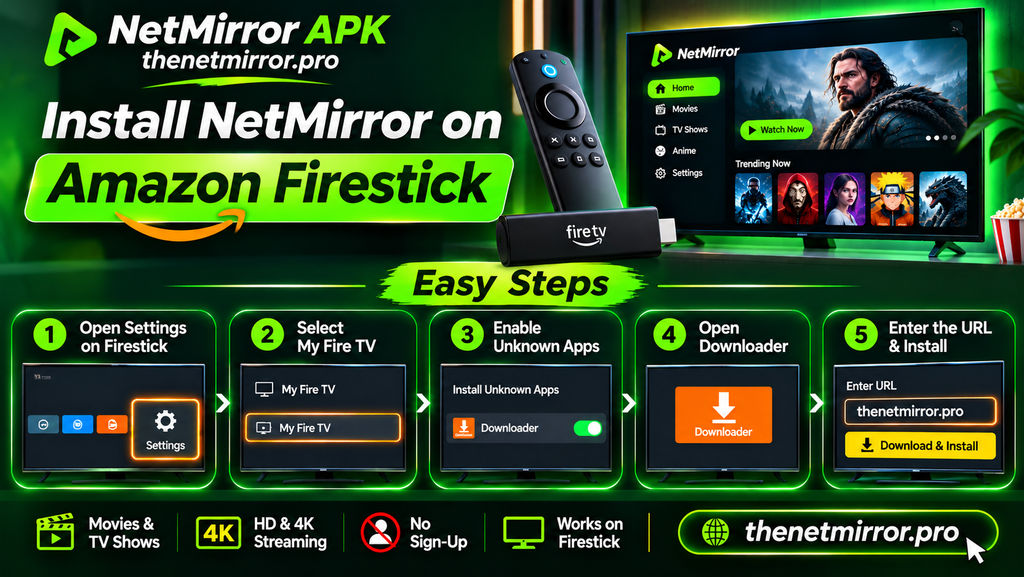
How to Find and Open NetMirror on Firestick
Apps you install yourself do not always take a front seat on the home screen. Find yours like this:
Hold the Home button and choose Apps, or open Your Apps & Channels from the home screen.
Find NetMirror in the list and open it.
To keep it in front: highlight the app, press the Menu button on the remote (the three-lines button), and choose Move to Front.
First open takes a little longer while the app settles. After that, it is one click from the home screen, like any store app.
Is NetMirror Safe on Firestick?
The straight answer section, because the sideloading world needs one. NetMirror is an unverified, third-party app. It is not in any official store, it does not hold official licences for the content it shows, and some security reviewers and scanning sites have raised flags about files circulating under its name. Anyone who calls it 100% safe is selling you something.
What genuinely protects you is smaller and duller than promises:
Install only the checked file — v3.0, 54.4 MB, package app.netmirror.netmirrornew, asking only for internet and network access. A file that differs from those numbers is a different file.
Get it from a page you can inspect, not a code from a comment.
Give the install permission to Downloader only, and switch unknown sources back off when you are done.
Delete the installer after installing (Part 3, step 5 already did this).
Sideloading itself is not the danger. Sideloading carelessly is.
NetMirror Problems on Firestick & Fixes
Downloader Will Not Install the File / “App Not Installed”
Almost always the permission: Downloader is not allowed under Install Unknown Apps, or the download was cut halfway. Check the permission first, delete the partial file inside Downloader's Files section, and download once more on a steady connection.
Developer Options Is Missing
It is not missing — it is hidden until the 7 taps. Go back to Part 1 and tap the device's name in About, slowly, seven full times. Rushing the taps is the usual reason the countdown never appears.
NetMirror Buffers a Lot on Firestick
Sticks sit behind TVs, far from routers, and they throttle when hot. Three things, in order: drop the video quality one step, switch the title's server, and give the stick air and its own wall adapter instead of the TV's weak USB port. Our buffering guide on this site goes through the full order, cause by cause.
App Opens, Then Closes, or Links Look Dead
Clear the app's cache on the stick: Settings > Applications > Manage Installed Applications > NetMirror > Clear cache. If a title's links look dead while others play, that title's server is down that day — a known, ordinary thing with this platform, and the fix is another title or another server, not another install.
How to Update NetMirror on Firestick
There is no auto-update on a sideloaded app. When a newer checked version comes, repeat Part 3 with the new file — download it in Downloader and install it over the existing app. Your place inside the app carries over, and the old installer file can be deleted right after, same as before. Two minutes, a few times a year.
Frequently Asked Questions
Final Words
Seven taps, one orange app, one honest file. That is the whole mountain people make of installing NetMirror on a Firestick — and now it is behind you.
Keep the permission narrow, delete the installer, and be suspicious of magic numbers. Do those three things, and your Firestick is a free cinema that behaves itself.