NetMirror Not Working? 10 Fixes That Actually Work (2026)
You open NetMirror to watch something, and it just does not work. Maybe the app will not open at all. Maybe it opens and shows a blank screen. Maybe every film keeps loading and nothing plays. The good news is boring, honestly — most of the time, NetMirror is not broken. Your phone, your internet, or the app's cache is. Nine out of ten cases fix in the first three steps below, in under five minutes, without deleting anything. Work through the fixes in order. Skip the rest the moment your film starts playing.
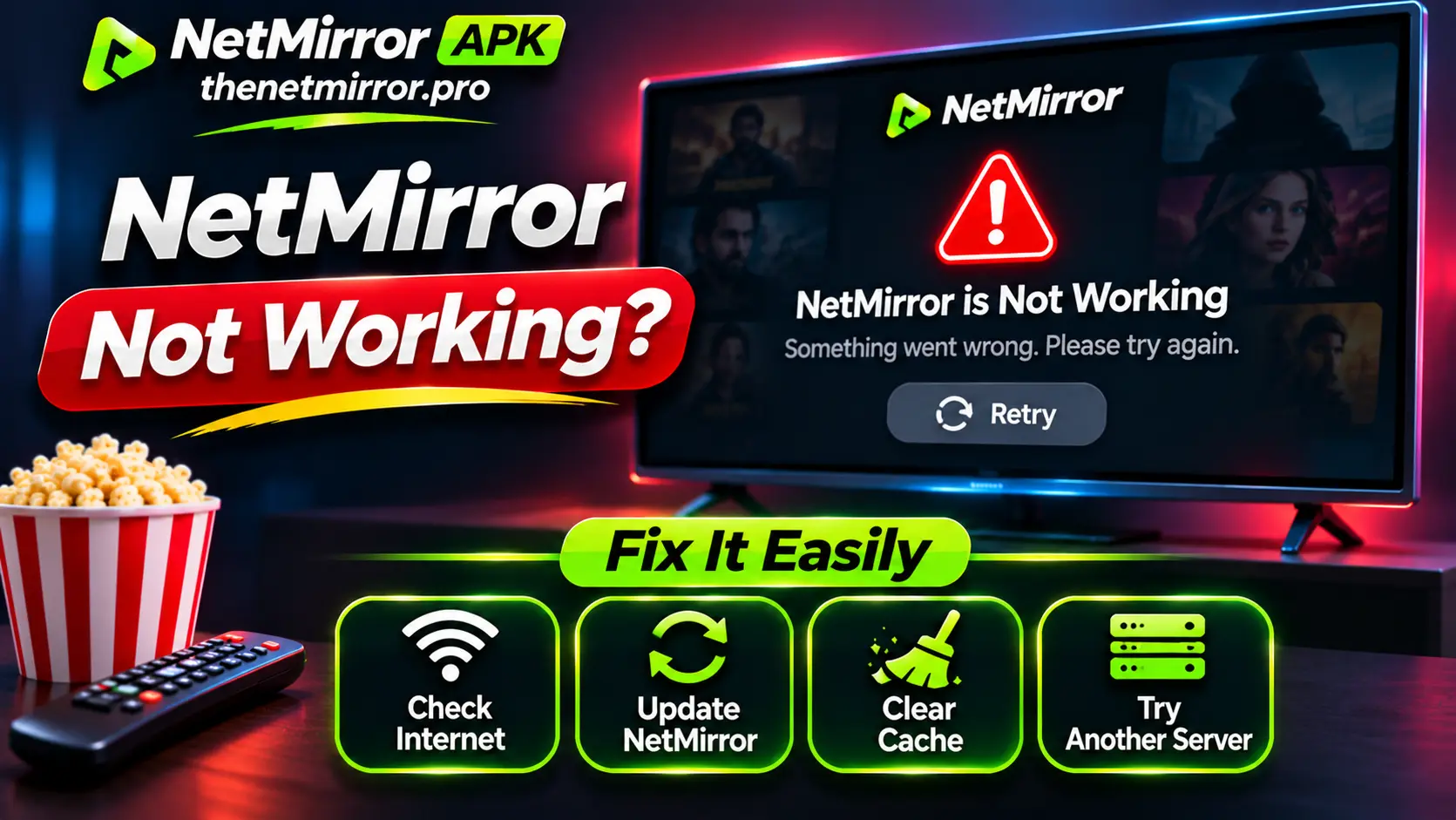
If NetMirror is not working, do these three things first:
Check your internet and restart the router.
Try a different title — the server for one title can be down while the app is fine.
Force stop the app and clear its cache — Settings > Apps > NetMirror > Storage > Clear cache. Your settings and downloads stay safe.
If none of that helps, restart the device and update the app to the checked v3.0 file. The full order, with the reason for each step, is below.
Quick Diagnosis — Find Your Fix Fast
| What you see | Go straight to |
|---|---|
| App will not open, or closes at once | Fix 3, then Fix 4 |
| Blank or black screen after opening | Fix 2, then Fix 3 |
| Nothing loads, spinning circle forever | Fix 1, then Fix 2 |
| One film will not play, others do | Fix 2 (that title's server) |
| Plays, but keeps stopping and buffering | Fix 9, then Fix 1 |
| Worked yesterday, dead today | Fix 5 (update) and Fix 8 |
| Not working on TV / Firestick only | Fix 3 and Fix 4 (TV steps inside) |
The 10 Fixes at a Glance
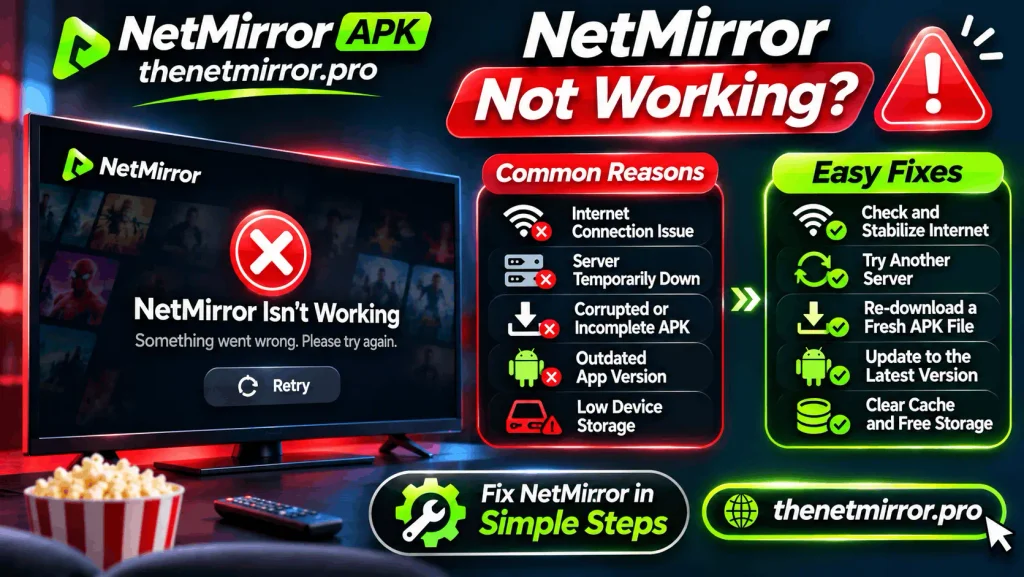
Check your internet and restart the router
Check if that title's server is down
Force stop the app and clear its cache
Restart your phone or TV
Update NetMirror to the checked v3.0 file
Free up storage (keep 500 MB to 1 GB open)
Turn the VPN off, or change it
Set date and time to automatic
Lower the video quality
Clean reinstall — the last resort
Fix 1 — Check Your Internet First
Before touching the app, touch the obvious. Open any other app that uses the internet — a browser, YouTube — and see if it loads. If it is also slow or dead, NetMirror was never your problem.
Restart your router once. Pull the plug, count to thirty, put it back. Half of all “the app is not working” evenings end right here, in ninety seconds, with nobody having fixed any app at all.
Fix 2 — Check If That Server or Title Is Down
NetMirror pulls films and shows from different servers. One server can be down, or overloaded on a big match night, while the app itself is perfectly fine.
Test it in ten seconds: open a different film or show. If that one plays, your app works — only the first title's server is having a bad day. Go back into your film, open its server list, and pick another server.
How to tell it is the server that is down, and not you:
Every title keeps loading, and not one of them plays
Your other apps and your browser work perfectly fine
A friend, on a different internet connection, has the same problem
It started suddenly, for everyone, at the same time
If nothing at all loads on any title, and your internet is fine (Fix 1), the platform itself may be down for a while. In that case the only fix is patience — check again in an hour instead of breaking your settings in the meantime.
Fix 3 — Force Stop and Clear the Cache
This is the fix that does the most work on this page. Apps collect temporary files — the cache — and over weeks that pile can go stale and trip the app up.
On Android: open Settings > Apps > NetMirror, tap Force Stop, then Storage & cache, then Clear cache.
On Android TV or Firestick, the path is its twin: Settings > Applications > NetMirror > Force Stop, then Clear cache.
One warning that matters: tap Clear cache, never Clear data. Cache is just temporary junk — clearing it costs you nothing. Clear data resets the whole app, and your watchlist and in-app downloads go with it. If you want the full story on app size and storage, our cache and storage guide on this site explains it end to end.
Fix 4 — Restart Your Device
Phones and TVs stay on for weeks, quietly collecting small problems in the background. A real restart — full power off, ten seconds, back on — clears the deck in a way no settings page can.
It sounds too simple to be Fix 4 on an expert list. It is on the list because it works more often than several clever things combined. Do it before you do anything bigger.
Fix 5 — Update NetMirror to the Checked Version
Old builds go stale. Servers move, systems update under them, and one morning an old version simply stops being answered. If your NetMirror has not been updated in a long time, this is very likely your whole problem.
Install the current build over your old one — going up needs no uninstall, and your list stays where it is. The version we have checked ourselves is v3.0, 54.4 MB, for Android 7.0 and above (SHA-256: c43e6d882d20aed5040c9531171b6f584553d61f19f2f19119357ef2ad5e23f7, if you like checking files properly). Be careful with pages shouting much bigger version numbers — when the number cannot be verified, neither can the file.
Fix 6 — Free Up Some Storage
A phone filled to the last megabyte makes every app behave strangely, and streaming apps feel it first — they need working room for cache and downloads.
Keep at least 500 MB to 1 GB free. The fastest ways to win that space back:
Old APK files in your Downloads folder — every install leaves a 54.4 MB copy behind
Films and episodes downloaded inside apps you no longer open
Big recorded videos and duplicate photos
Apps you have not touched in months
Then try NetMirror again. People are often annoyed at how well this works.
Fix 7 — Turn Off the VPN, or Change It
A VPN can be the invisible wall between NetMirror and its servers. If you run one, turn it off for two minutes and try the app again. If NetMirror suddenly works, your VPN was the whole story — change its server or its app, not NetMirror.
The mirror test also helps: if NetMirror works on mobile data but not on your home Wi-Fi, your internet provider may be slowing or blocking the route. That is an ISP problem, and a VPN (used the other way around — turned ON for Wi-Fi) or a call to the provider is where that fix lives.
Fix 8 — Set Date and Time to Automatic
Strange, and true: if your phone's date or time is wrong, streaming apps can refuse to connect properly, because the secure connection checks the clock.
Go to Settings > Date and time and turn ON the automatic option. Then open NetMirror again. Thirty seconds, and one of the oddest causes on this list is either fixed or crossed off.
Fix 9 — Lower the Video Quality
If films load but will not play smoothly — stop, start, stop — your connection may be losing an honest fight with a heavy stream. Open the player settings during a film and drop the quality one step, from 4K to HD, or HD to a step below.
If it plays clean after that, nothing was broken. Your internet was simply being asked for more than it had tonight. Raise the quality again on a better connection and forget it.
Fix 10 — Clean Reinstall (Last Resort Only)
Only here, and only if everything above failed: uninstall NetMirror completely, restart the phone, then install the fresh v3.0 file and set the app up again.
Before you press uninstall, note these down:
Your watchlist titles — they live inside the app, not in any account
Any films downloaded inside the app — they will need downloading again
The server and video quality you normally use
Why last? Because a reinstall clears your watchlist and in-app downloads along with the problem. It is the biggest hammer in the box. But when an install itself has gone bad — half-updated, files mixed between versions — it is also the fix that ends the story. Note your watchlist down before you start.
Three Habits That Stop This From Coming Back
Keep the app updated. Most “suddenly not working” cases are really “quietly too old” cases.
Clear the cache once a month. Thirty seconds in Settings, and Fix 3 never gets the chance to become your evening.
Leave the phone some room. A device with free space is a device whose apps behave. The 1 GB rule from Fix 6, kept all year, is boring — and it works.
Frequently Asked Questions
01 Why did NetMirror stop working suddenly?
Usually one of three quiet changes: your internet or router had a bad moment, the app got too old for its servers, or the cache grew stale. Fixes 1, 3 and 5 — in that order — cover almost every sudden stop.
02 Is NetMirror down today?
It can be, for an hour or a night, like any platform. The test is simple: if your internet works for everything else, several different titles all refuse to load, and changing servers changes nothing, it is most likely the platform's side. Wait and check again later instead of reinstalling in a panic.
03 Will clearing the cache delete my downloads and watchlist?
No. Clear cache removes only temporary files. Your downloads, watchlist and settings stay exactly where they were. It is Clear data that wipes those — that button is not part of any fix on this page.
04 Why does NetMirror show a black screen?
A black or blank screen after opening is most often a stale cache or one dead server. Clear the cache (Fix 3), and if a single title stays black, switch that title's server (Fix 2). On TV, a full restart after the cache clear finishes the job.
05 NetMirror works on my phone but not on my TV or Firestick. Why?
Then the app and servers are fine, and the problem sits in the TV side: its cache, its storage (TVs fill up quietly), or its connection. Run Fix 3 and Fix 4 with the TV steps — force stop, clear cache, full restart — and check the TV has at least 1 GB free.
06 I tried everything and it still does not work. Now what?
Do the last resort properly: the clean reinstall in Fix 10, with a fresh file from a trusted page, and the version number checked (v3.0, 54.4 MB). If a clean install on a working internet connection still fails, the fault is on the platform's side that day — and no setting on your phone was ever going to fix it.
Final Words
“Not working” sounds like one problem. It is really ten small ones wearing the same coat — and nine of them fix at home, in order, in minutes.
Start at Fix 1. Stop the second your film plays. And keep the three habits, so the next time NetMirror has a bad evening, it is a two-minute evening instead of a lost one.