
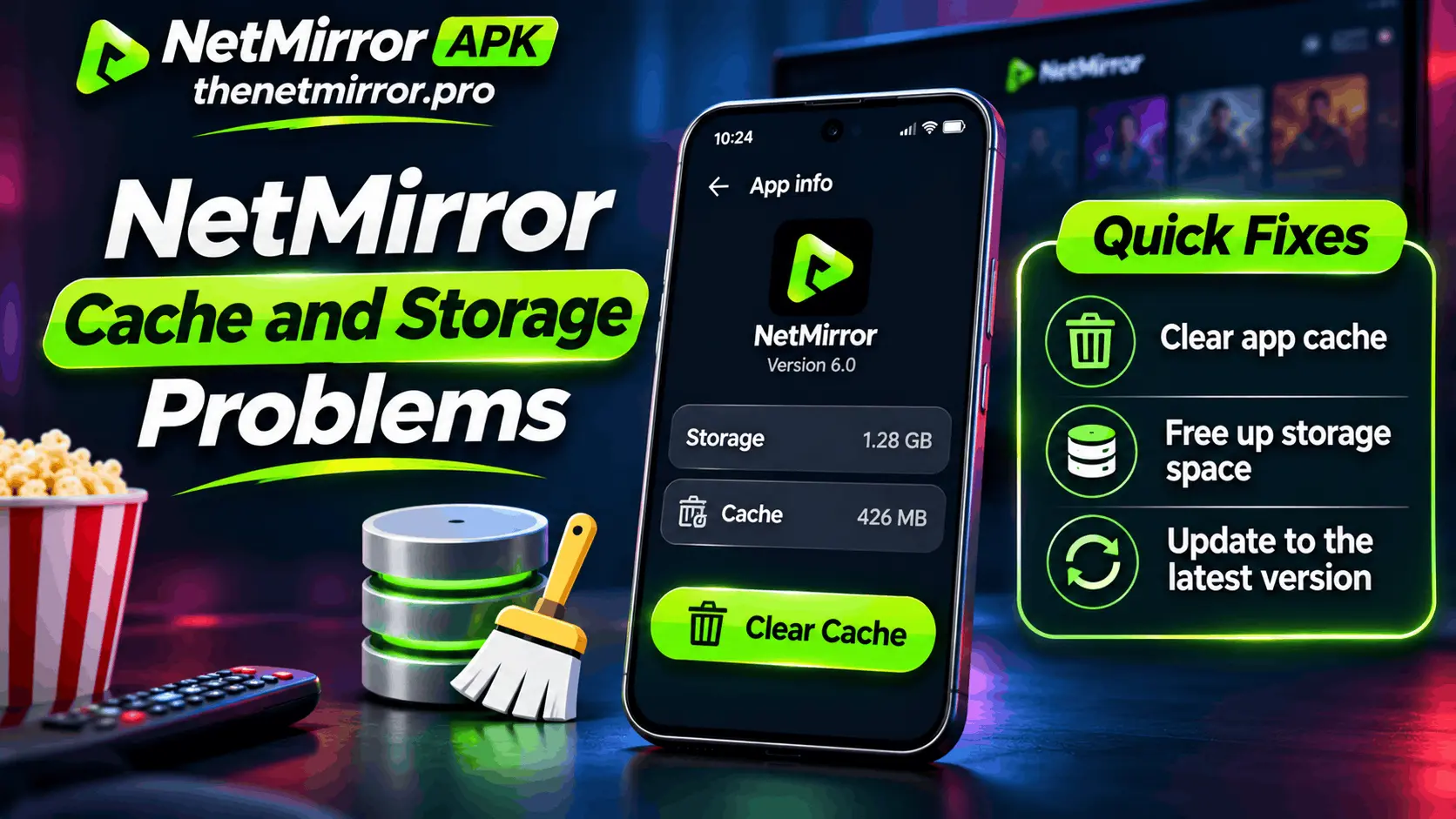
NetMirror Cache and Storage Problems: Why the App Keeps Growing and How to Fix It
When you installed NetMirror, it was a 54.4 MB app. Now you open your phone's storage screen and NetMirror is sitting at 800 MB, or 1.5 GB, and still growing. The problem feels like the app is secretly eating your phone — and the usual first reaction, pressing buttons in the storage screen, can delete the wrong thing and reset your whole app. Here is the solution, in one line: the app itself never grew. Its cache and its downloads did — and both can be cleaned safely, if you press the right button and check the right numbers first. This article shows you which number is which, what to clear, and what never to touch by mistake.
Quick Answer: NetMirror grows because of cache and downloads, not because the app itself gets bigger. Do these three things:
Check the breakdown first — Settings > Apps > NetMirror > Storage & cache. Note the three numbers: App size, User data, Cache.
If Cache is the big number, tap Clear cache — it removes only temporary files. Your settings, watchlist and downloads stay safe.
Never start with Clear data — that resets the whole app to its first day. It is the last step on this page, not the first.
Quick Diagnosis — Which Number Is Your Problem?
| What the storage screen shows | What it means | Go to |
|---|---|---|
| Cache is huge, data is small | Normal build-up of posters and video pieces | Clear the cache (steps below) |
| User data is huge | Downloads inside the app are eating space | “Still Full?” section below |
| Total is big, cache and data both small | The problem is probably not NetMirror | Check old APK files & other apps |
| App crashes or will not open, cache huge | The cache pile has gone stale | Clear cache, then restart |
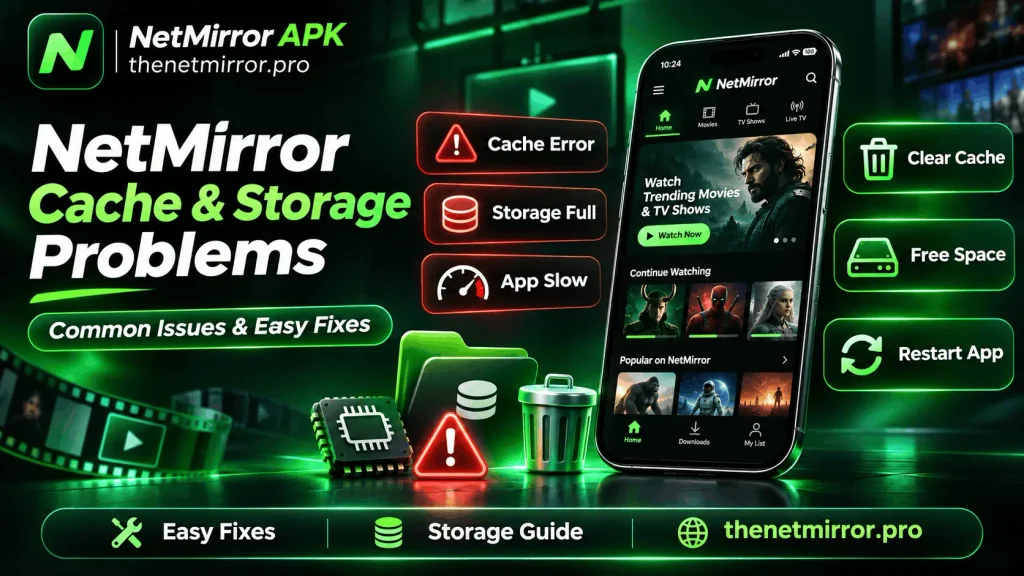
Why NetMirror Keeps Growing — The 3 Parts of Its Size
Every app's storage screen shows three numbers. Once you know them, this whole problem stops being scary.
1. The App Itself — Fixed, Never Grows
The NetMirror app file is 54.4 MB, and it stays 54.4 MB. It does not grow on its own, and no update sneaks size into it without telling you. If the total number is far above this, the extra came from the two parts below — always.
2. Cache — The Part That Grows Silently
Cache is the app's working pile. Every time you browse and watch, it quietly saves things like:
Movie and show posters and thumbnails
Small pieces of video, loaded ahead so playback starts fast
Pages and rows you scrolled through, so they open quickly next time
Streaming apps collect more of this than most, because pictures and video pieces are heavy. There is no fixed ceiling where cache politely stops — it grows with your watching, a few hundred MB in a normal month, and past 1 GB if nobody ever clears it. A few hundred MB is normal and even useful. A giant, months-old pile is what slows the app and fills the phone.
3. User Data — Your Settings and Your Downloads
User data is the part the app keeps because it belongs to you:
Your settings and preferences
Your watchlist and history, saved on the device
Films and episodes you downloaded inside the app — and these are the heavy ones, at full movie size each
That last line is where serious space hides. One forgotten downloaded film can outweigh months of cache — and no cache clear will ever touch it, because to the app, it is not junk. It is yours.
Clear Cache vs Clear Data — The Difference That Matters
Most storage disasters with this app come from one wrong tap. Learn this table and you are safe.
| Clear Cache | Clear Data (Clear Storage) | |
|---|---|---|
| What it deletes | Temporary files only — posters, video pieces | Everything: settings, watchlist, in-app downloads |
| Your settings | Stay exactly as they are | Gone — app returns to its first day |
| Your downloads | Stay | Deleted |
| When to use it | Freely, whenever size or behaviour bothers you | Only as a planned last step (near the end of this page) |
Short version to remember: Cache = the dust. Data = the furniture. Sweep the dust any time. Throw the furniture out only on purpose.
How to Clear NetMirror Cache — Step by Step
On Android Phone
Open Settings > Apps > NetMirror.
Tap Storage & cache.
Look at the three numbers for a second — know which one you are fixing.
Tap Clear cache. The number drops at once.
Open NetMirror again. The first load may feel a touch slower while fresh posters come back — that is normal, and it is over in a minute.
On Firestick and Android TV
Open Settings > Applications > Manage Installed Applications.
Pick NetMirror from the list.
Tap Clear cache — the same warning applies: not Clear data.
Go back and open the app once, so it rebuilds a clean, small cache.
Storage Still Full After Clearing Cache? Check These 3 Places
The cache is clean and the phone is still full? Then the weight was never in the cache. Check here, in this order:
1. Downloads Inside the App
Open NetMirror's own downloads section and look at what is sitting there. Films saved “for later” months ago are full-size files. Delete what you have already watched — this one step frees more space than any other in this article, and no setting screen will ever show it to you as “cache”.
2. Old APK Files in Your Downloads Folder
Every NetMirror install and update leaves its APK copy in your phone's Downloads folder — 54.4 MB each time. Updated the app a few times? You may be storing the same app three or four times over as dead files. The installed app does not need them. Delete the old APK files; the app on your phone keeps working.
3. Other Apps Sharing the Blame
If NetMirror's own numbers are small, believe them and look wider. Usual heavy neighbours:
Messaging apps holding months of videos and photos
Other streaming apps, each with its own quiet cache pile
The camera folder and screen recordings
NetMirror gets investigated first because its number is easy to see. It is not always the guilty one.
When Clearing Cache Does Not Work — The 3-Step Ladder
Do these in order. Do not jump to step 3 because it feels stronger — stronger is exactly its problem.
Restart the phone. A stale cache plus a tired system often survives a cache clear but not a restart. Restart, open the app, and judge again.
Clear data, on purpose. If the app still misbehaves, now — and only now — Clear data earns its place. Before you tap it, accept its small checklist:
Your watchlist will be gone — note the titles down
Downloaded films inside the app will be deleted
You will set the app up once more, like a first install
Clean reinstall. Uninstall NetMirror fully, restart the phone, and install the fresh checked file (v3.0, 54.4 MB). A mixed, half-updated install is one fault a cache clear can never repair — a clean one ends it.
A Word About “Cache Booster” Apps
Sooner or later, an ad will offer you a magic cleaner app that promises to make your phone fast and empty. Be careful. The honest ones do little that your own Settings screen does not do for free, and the pushy ones bring their own ads, their own background running, and sometimes their own cache pile.
Everything in this article — checking the numbers, clearing the cache, deleting old downloads — your phone already does, in its own settings, for free. You do not need a booster. You needed a map. This page was the map.
Habits That Keep NetMirror's Size Under Control
Clear the cache once a month — one minute, and the pile never becomes a problem
Delete watched downloads the same week you watch them
Remove the APK file from Downloads after every install or update
Keep 1 GB of your phone free as working room — apps behave better, all of them
Check the three numbers any time an app “suddenly” looks big, before pressing anything
Frequently Asked Questions
01 Is it safe to clear NetMirror's cache?
Yes, completely. Clear cache removes only temporary files — posters and video pieces the app rebuilds as you watch. Your settings, watchlist and downloads are untouched. It is the safest fix in this whole topic, and the one to try first.
02 Will clearing the cache delete my downloaded movies?
No. Downloads live in the app's user data, not in its cache, and Clear cache does not go there. It is Clear data that deletes downloads — one more reason the two buttons must never be confused.
03 Why does the cache grow back after I clear it?
Because the app starts working again. Posters load, videos prepare their pieces, pages get remembered — the pile is the app doing its job, not failing at it. It should grow back slowly, over weeks. If it explodes back within a day or two, something is wrong — work through the 3-step ladder above.
04 How much cache is normal for NetMirror?
As a rough, general guide for streaming apps: a few hundred MB is normal and healthy. Somewhere past 1 GB, or whenever the app starts lagging and crashing, is the time to clear it. That is a practical guide, not an official NetMirror limit — the app sets no public ceiling, which is exactly why the pile needs an owner.
05 NetMirror shows a small size, but my phone says storage is full. Why?
Then your phone is full, but not with NetMirror. Its storage screen shows only its own three numbers. Check your Downloads folder for old APK files, your messaging apps for saved videos, and your camera roll — the “Still Full?” section above walks the same list.
06 What is the difference between cache and data in NetMirror?
Cache is temporary working files — safe to delete any time. Data is your settings, watchlist and downloads — deleting it resets the app completely. Cache is the dust, data is the furniture. The full table is in the middle of this page.
07 How do I stop NetMirror from taking so much storage in future?
Three small habits do almost all of it: clear the cache monthly, delete films after you watch them instead of “saving them for someday”, and remove the APK file from your Downloads folder after installing. The habits list above is the whole system — nothing in it takes more than a minute.
Final Words
NetMirror did not betray you. It is a 54.4 MB app doing its job on a phone where temporary files and forgotten downloads pile up in the dark.
Now you know where the weight sits, which button is safe, and which one is the furniture going out of the window. Check the numbers first. Clear the cache freely. Save Clear data for the day you mean it. Do that, and this is the last storage scare this app ever gives you.